
Revolutionize Your Operations with Up-to-Date Building Data: Reduce Costs, Downtime, Improve Service
OrthoGraph is the de-facto standard of Operational BIM. Savings provided in construction, on maintenance, contracting, tendering with a clear and accurate view of all owned assets during the total building lifecycle. ROI is between weeks and months, in industrial operation even at preventing the first downtime.

10-20% cost reduction.
This is comparable to the total construction cost of the building. All this while improving operational quality.
OrthoGraph® = the Digital Twin
Instant access to your up-to-date Digital Twin everywhere!
OrthoGraph resolves the problem, that building models are expensive to create, hard to keep up-to-date, and it is hard to integrate them into workflows and other systems. Usually they require expensive devices, software, and highly educated experts to create and handle, and quickly become obsolete. The importance of asset data and the identification of them and their exact position in the model is also often overlooked.
OrthoGraph is fast and accurate in model creation with its unique survey to BIM direct technology with embedded graphical asset inventory and offers 3 ways to access the data anywhere: application, web browser, and API-based enterprise-level integration with any third-party system (IWMS, CMMS, BMS etc.). The final model can be kept up-to-date by the regular maintenance crew on-site, at the point of changes. The 3 pillars of OrthoGraph thus are:

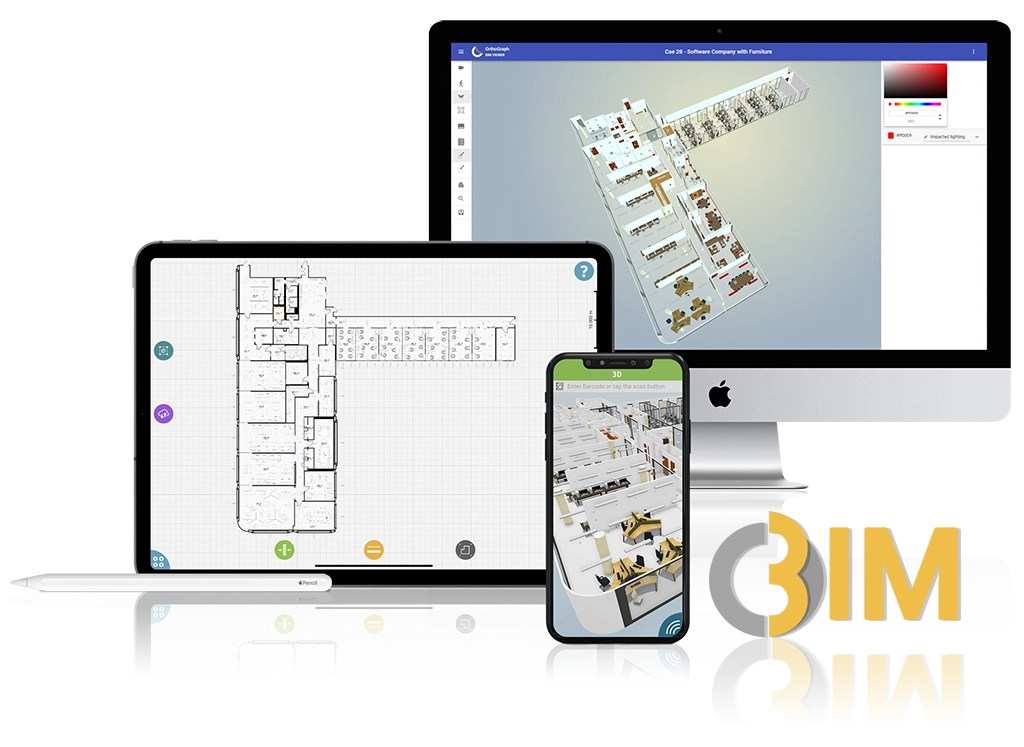

OrthoGraph® = the Operational BIM©
Operational BIM vs regular BIM – it’s about money and workflows
There is a significant difference between the information you need for the long term building operation, facility management, and what you need for designing and construction. The proper use of BIM in the long-term lifecycle of a property when using it, renting it, manufacturing in it etc. will not just result in tons of cost saving, but highly increases the productive performance of it.
The difference between these two BIMs is less technical, it is a lot more about what’s stored in them and how you and your employees can access and maintain them. The Operational BIM should not be an over dimensioned data jungle but rather a sufficiently detailed, straight to the point, always up-to-date building documentation. It is supposed to be available both in the office and on site. By adding unique identifiers (bar codes, RFID) to the inventory the efficiency of operation and maintenance processes can be significantly increased.
References: Learning from others’ success stories!
Check out some case studies, how OrthoGraph Operational BIM helped our users at their projects.
In 2022 we got a request to create a documentation of all cooling machinery supporting their production of one of the largest breweries in Eastern Europe. It had to be...
When is the right time to start with Operational BIM? Anytime! From the moment the walls of your building are standing until its final phase, prior to demolition. The...

Semmelweis University Hungary’s largest hospital-university complex has approximately 400 000 m(2) of floor plan space. It’s built up of fully functionaly hospitals,...
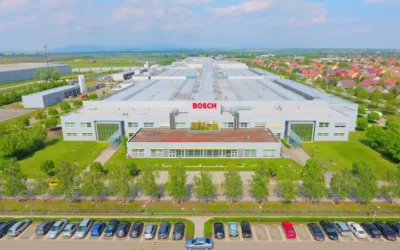
OrthoGraph was originally designed to support facilities management with accurate building data. But sometimes, the market presents new opportunities for us to explore....
Innovation is the key to the future success. That's true for a country as well as for a company. Tungsram, Hungary's second largest privately owned company decided to...
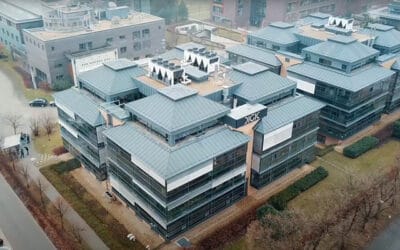
Graphisoft Park is known as Hungary's Silicon Valley. Beautiful environment, modern buildings, and big names in the software and other very innovative industries....

NeocoreGames is a Hungarian video game developer that focuses on creating and publishing role-playing video games. The company has its own development studio...
Learning from industries!
Learn how you can benefit from operating and empowering your facilities based on real life data.
Manufacturing / Industrial Operation
OrthoGraph was originally designed to support...
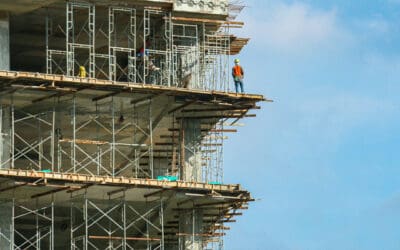
Construction
OrthoGraph revolutionizes the field of...
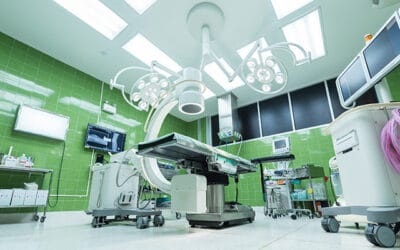
Hospitals / Healthcare
Hospitals are one of the most difficult...

Pharmaceutical / Food industry
Both pharmaceutical factories and factories of...

Universities and Research Institutes
Educational institutes tend to have a large...
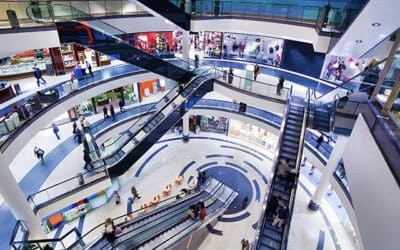
Shopping Malls, Retail Stores , Department Stores
Retail has its own challenges in operation, but...

Office buildings / Banks
OrthoGraph was designed from the ground up to...

Government, Municipal and Public
Cost reduction, energy optimization, fulfilling...

Hotels
The service of building operation, facility...
Benefits in different building lifecycle phases!
Operational BIM can be exploited starting from the beginning of a building construction till it’s final demolition. Learn about how OrthoGraph helps in different building lifecycle phases.
Construction
OrthoGraph revolutionizes the field of...

Building Acquisition / Renovation / Refurbishment
When planning to buy a new property there is...
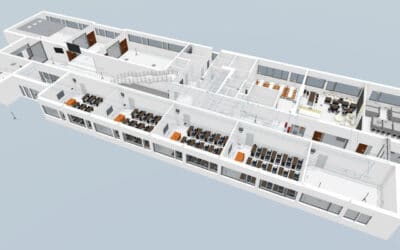
Industrial and Facility Operation
Both the Facility Management and Industrial...

Achieving ESG energy / social / governmental optimization goals
Energy is not just expensive nowadays in many...

Disaster Prevention
OrthoGraph was originally designed to support...
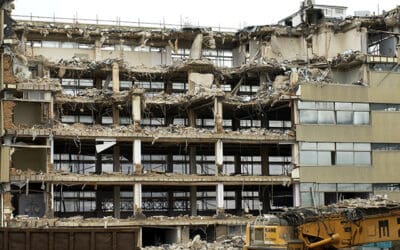
Demolition
When planning the demolition of a building, it...








News
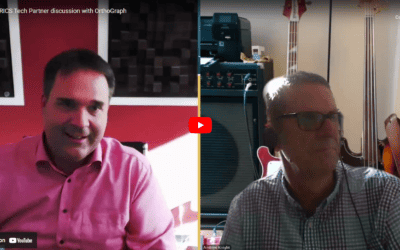
We’re excited to share that our CTO, Adam Korbuly recently had an insightful conversation with Andrew Kinght from RICS, where they discussed Operational BIM and its use...
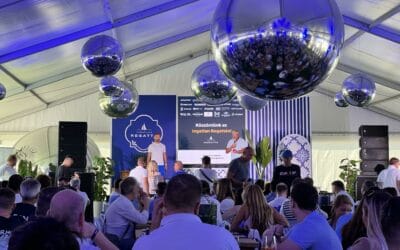
Our CTO, Adam Korbuly was invited by Proptech Zoom to participate in one of Hungary’s most prestigious real estate community events - the Real Estate Regatta. This...

The first ever proptech event has been held in Greece. It was a professionally organized event by Stella Tsartsara, with already great interest, well-known and highly...

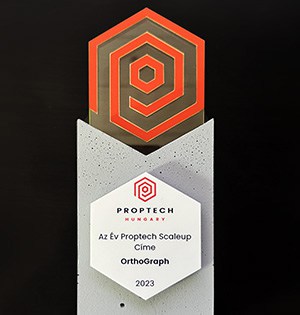
I am thrilled and honored to announce that OrthoGraph has been chosen as the ScaleUp of the Year 2023 by Proptech Hungary Association, the leading organization that...
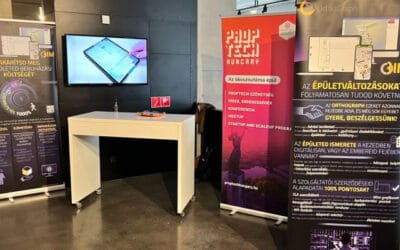
Meet OrthoGraph at the main Proptech event in Hungary organized by Proptech Hungary Association today at BMC, Budapest, Hungary. The Proptech Hungary Association...
When is the right time to start with Operational BIM? Anytime! From the moment the walls of your building are standing until its final phase, prior to demolition. The...

OrthoGraph Helps Saving the Increased Costs of Energy Crisis With the emergence of the energy crisis, new unexpected, unplanned costs have appeared that cannot be...

28 October 2021 – OrthoGraph and Planon, the leading global provider of IWMS software stepped in a strategic partnership.The companies teamed up to pave the way to a...

OrthoGraph Enterprise | Planon Marketplace Opened OrthoGraph Operational BIM is available on the newly open Planon Marketplace! In this rapidly expanding world of...

Facility management tasks are performed differently by everyone based on local conditions and requirements. Hospitals, malls, or office buildings are operated...

We think education in digitization of facility management is key to the successful transformation. Operational BIM channel, we explain the difference between each data...
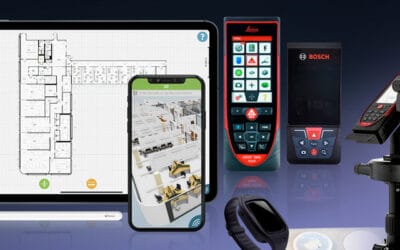
Operational BIM is about making facility and maintenance management more effective by giving access to the Digital Twin of a building everywhere where it is needed....
We have been selected as Semi-Finalists of the PropTech Startup and Scale-up Europe Awards 2021 of the @European PropTech Association and @FINNOVA. These Awards are...
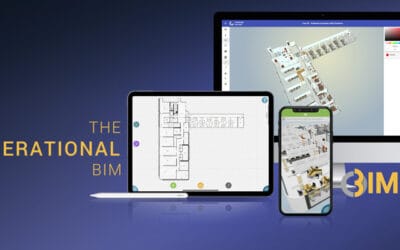
Learn about what Operational BIM is, how it supports Facility and Maintenance Management, and why we think it is crucial for the successful building operation in the...

We have already seen several examples how providing assets with a unique identifier can be beneficial in real estate operation, or even by production machines. In...
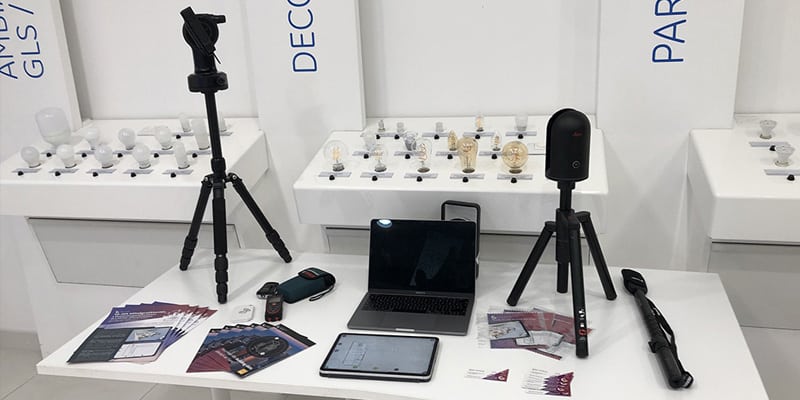
The “Tungsram-iLex Innovation Market powered by BCE-BIK KKV” has already more than 100 Hungarian companies listed. For the most part, these companies are working not...
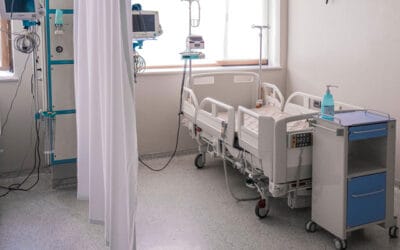
During today’s pandemic hospital renovation and refurbishment is more and more in focus. This might be a reason we receive more and more inquiries about hospital...

We have already summarized saving capabilities of OrthoGraph in an earlier article , let’s see how we can utilize the same BIM model we have used for facility...

The alphanumeric digitization of facility management is available for more than 2 decades. Many have already taken the opportunity, some visioners have even implemented...
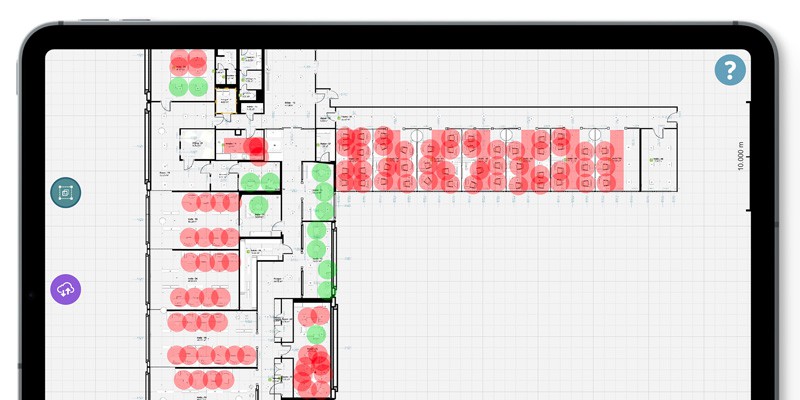
All business owners are now in deep hesitation, how to handle best the return to work after the home-office model they had to apply due to the COVID pandemic. As we...
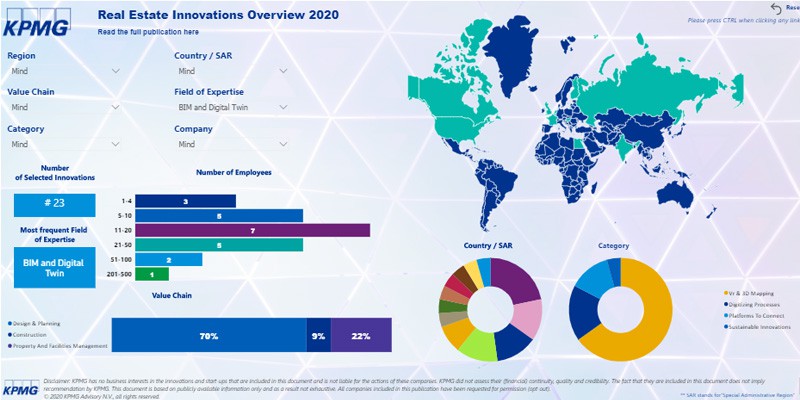
KPMG has chosen OrthoGraph as one of the global innovations in Real Estate and Construction industry
KPMG has announced their publication of the 5th annual edition of KPMG's Real Estate Innovations Overview. OrthoGraph had caught their attention in their...

We all know that a new era has come where we need to adapt to the new living and working conditions brought by COVID-19. On one hand social distancing is crucial, on...

In epidemic it is crucial to reduce the on-site presence of maintenance workers, minimize their moves and centralize all knowledge of the buildings at their...
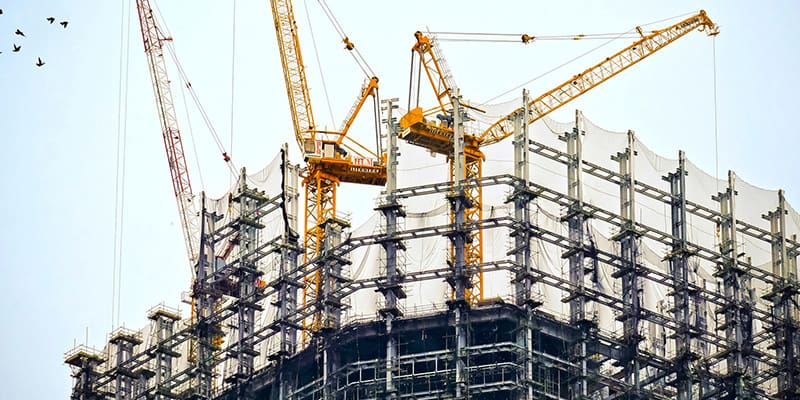
The longest and most expensive part in a building's life-cycle, is the 30-50 year long period, when the building is in-use, operated. The total cost of this period...

We have found a great article about how the BIM models can facilitate the building operation. A very detailed article also mentioning that "Studies have shown that you...
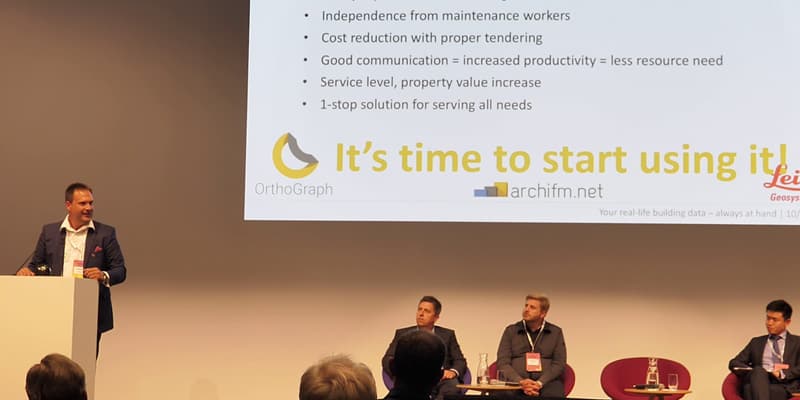
Thank you for the conference audience for choosing us and congratulations to all nominees. CEE Property Forum 2019 OrthoGraph was successfully presenting in March at...

Orthograph named 'National Winner' in prestigious European competition OrthoGraph has been named ‘National Winner’ in the 2019 European Business Awards, one of...

A giant leap in handling historic buildings OrthoGraph has always been one of its kind in providing high-quality building surveys, even in difficult situations....
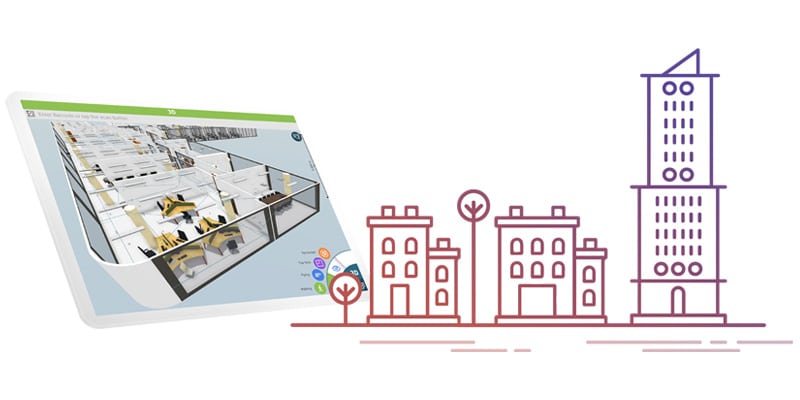
The background of OrthoGraph Enterprise OrthoGraph has been a very successful building surveying product used internationally by more than 160k downloaders for 15...
Start your pilot today!
Try OrthoGraph services or technology without a risk. Choose a building that is planned to be renovated, a factory block where the downtimes have the highest risk or any of your facilities that you want to have performing better. Ask for a quote today!
Still having questions? Use the Operational BIM ROI calculator with your own numbers or request a live 1:1 demo today!
to our Newsletter
OrthoGraph

Contact us
Contact us
OrthoGraph GmbH
Gartenstrasse 7
Zug
Switzerland
6300
+ 41 (41) 5510150
9:00-18:00 Zurich Time
USA: +1 760 933 1550
UK : + 44 (20) 34119438
Other pages
Education
Rapid Survey Concept
Orthograph for Constructions
Historical Building Survey